[How-To] Put your iPhone in DFU mode
Wednesday, June 23, 2010

DFU means Device Firmware Update. If a restore using Recovery Mode doesn't work you will want to use DFU Mode as a last resort. When placing your iPhone into DFU Mode it does not load the OS before attempting the restore
To put the iPhone into DFU mode so you can do an iTunes firmware restore follow these steps:
Step One
Open iTunes and connect the iPhone to your Mac.

Step Two
Press and hold the Home button and the Sleep/Wake button at the same time.

Step Three
After exactly 10 seconds release the Sleep/Wake button. Continue holding the home button until you iTunes pops up a message telling you that it has detected an iPhone in recovery mode.

The iPhone screen will remain black like this :

NOTE : It may take a few attempts to get your iPhone into DFU mode. Generally, I hold down both buttons then release the Home button just before I think the Apple logo would appear. If you are still holding both buttons down and you see the Apple logo you are holding them down for too long!
[How-To] Find the Firmware and Baseband Version of your iPhone
Wednesday, June 23, 2010

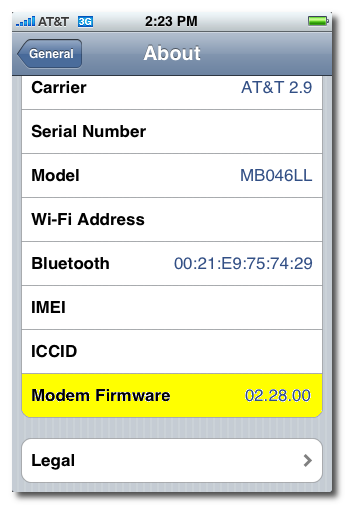
These are instructions on how to find the firmware and baseband version (modem firmware) your iPhone is currently running.
Step One
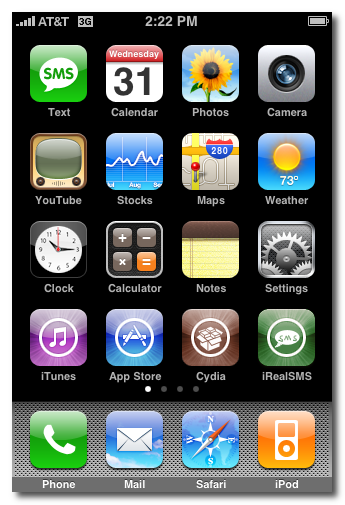
Press to launch Settings from your Springboard.
Step Two
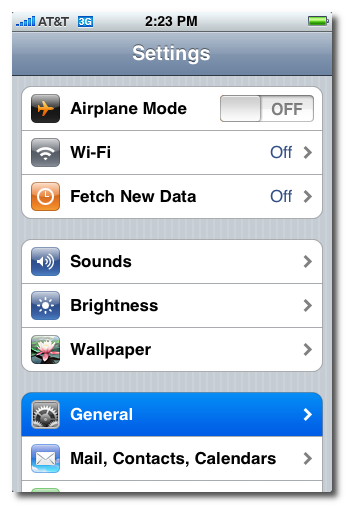
Press to select General from the Settings Menu.
Step Three
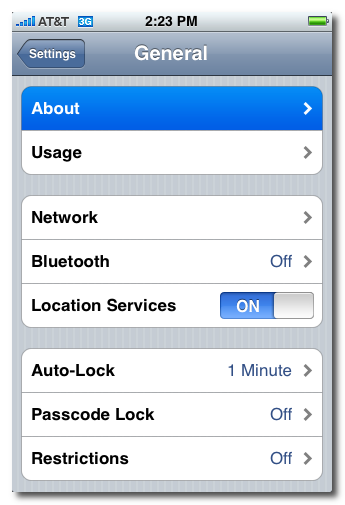
Press to select About from the General Settings Menu.
Step Four
From the about screen you can find your firmware version under the Version label.
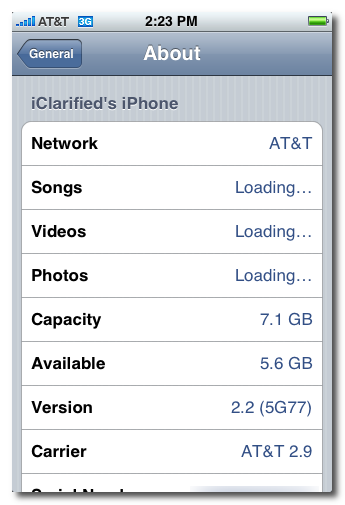
Scroll down and you can find your baseband version under the Modem Firmware label.
News Pwnagetool 4.01 : Jailbreak iOS 4.0 [Mac] *Update*
Wednesday, June 23, 2010

Update : Version 4.01 released ! Fixed issue with iBooks
TUTORIAL HERE
PwnageTool 4.01 Release Info
On Monday, Apple released firmware 4.0 for the iPhone and iPod touch devices. This of course was a major upgrade.
As advised, you shouldn’t have upgraded your devices if you have previously relied on our tools for hacktivation and/or a carrier unlock.
With that said, today we are releasing PwnageTool 4.01
PLEASE READ THIS ENTIRE POST CAREFULLY, THERE ARE KNOWN UPGRADE TRAPS AND DIFFERENT UPGRADE SCENARIOS THAT NEED TO BE FULLY UNDERSTOOD AND CONSIDERED BEFORE USING THESE TOOLS.
Each supported device has few different scenarios that users need to consider when performing the upgrades, you need to check below and perform the upgrade in the particular way that matches your current device state.
NB: With PwnageTool 4.01 certain devices are not supported this is because they are not supported in iOS 4.0 or they are not supported by our software. We’re working on ways to get past these restrictions.
- iPhone 2G - not supported
- iPod Touch – not supported
- iPod Touch 3G – not supported
iPhone 3GS
Summary: Currently, PwnageTool only works on previously jailbroken 3GS devices with the old bootrom.
- If you have a Jailbroken iPhone 3GS with the OLD BOOTROM and you DID NOT use Spirit to jailbreak then you can create the ipsw with PwnageTool 4.0 and restore with your jailbroken recovery mode.
- If you have an iPhone 3GS with the NEW BOOTROM this is NOT supported by PwnageTool 4.0
- If you have a Jailbroken iPhone 3G at 3.1.2 (but not jailbroken with Spirit) then you should create the ipsw with PwnageTool 4.0 and restore from recovery mode or DFU mode.
- If you have an out of the box iPhone 3G you should restore using a PwnageTool 4.0 ipsw using DFU mode.
- If you have a Jailbroken 3.1.3 iPhone 3G it is very possible that this can fail from recovery mode, if this failure happens you will need to restore using DFU mode.
- As an alternative to PwnageTool, you can use redsn0w on iPhone 3G (on both Windows and Mac) as mentioned in our last post.
iPod touch 2G
- If you have an iPod touch 2G (non-MC model) that is jailbroken (but not with Spirit) then you can restore using recovery mode.
- As an alternative to PwnageTool, you can use redsn0w on non-MC iPod Touch 2G (on both Windows and Mac) as mentioned in our last post.
- As you probably know by now, ultrasn0w has been updated to cover all basebands from 04.26.08 onward. Many thanks to @sherif_hashim for finding the crashing command that the new ultrasn0w 0.93 uses! He worked hard at finding the crash, and he kept it confidential until the right time to use it.
- iPhone 3G and 3GS baseband unlockers (those who rely on ultrasn0w to make phone calls) should always be very wary to update their firmware, however our Ultrasn0w application will unlock all recent (including the current) 3GS and 3G baseband firmware versions. Once you are jailbroken using PwnageTool 4.0, install ultrasn0w from Cydia and you’ll be unlocked.
- Remember! This baseband unlock situation is rare, should you upgrade your iPhone blindly at the next iOS release please don’t expect an unlock – but for now you are OK (whatever state your baseband is in).
Official Bittorrent Releases
PwnageTool 4.0 Torrent - PwnageTool_4.01.dmg.5645662.TPB.torrent
SHA1 Sum = 15bdb90ec40f1e279bb648eb7e9d90ebe07b66d2
Unofficial Mirrors
The following links are unofficial download mirrors, you download these archives at your own risk, we accept no responsibility if your computer explodes or if it becomes part of a NASA attacking botnet or even worse if your hands fall off mid-way during the use of these files. We do not check these links and we accept no responsibility with regard to the validity of the files, the other content that these links may provide or with the content that is on the third-party linked site.
Always check the files that you have downloaded against our published SHA1 hash.
We would prefer that you downloaded the official bittorrent release that is linked above, but you are welcome to try these if you really must. Mirror owners should email direct dmg download links only (no rapidshare or filesharing sites please) to blog@iphone-dev.org — please don’t place mirrors in the comments as they will be deleted.
[How-To] Downgrade iTunes 9.2 to 9.1.1 [Mac/Windows]
Wednesday, June 23, 2010

Tutorial to downgrading iTunes 9.2 to 9.1.1 (PC version)
- Back up your iTunes library. Go to c:\My Documents\My Music\iTunes and copy the entire folder to a separate location
- Download iTunes 9.1.1 from here
- Uninstall the following 6 programs : iTunes 9.2, iPhone Configuration, Apple Mobile Device Support, Apple Application Support, Apple Software Update, Quicktime (Make sure you uninstall this)
- After uninstall all six items, reboot your PC
- Now open file explorer, go to c:\My Documents\My Music\iTunes and locate the file name iTunes Library.itl, rename it to iTunes Library.itl.bak (this is your backup)
- Still inside iTunes folder, look for the folder Previous iTunes Libraries, inside the library there are a number back up itl files with the dates as their names. Look for the latest file before you updated iTunes to 9.2, and copy that file to the c:\My Documents\My Music\iTunes folder.
- Rename that file as iTunes Library.itl
- Double click you iTunes 9.1.1 installation file and let it install. Once it’s completed, you should find your iTunes exactly as it was before.
- Keep that iTunes Backup folder somewhere, you will thank me for this later.
Tutorial to downgrade iTunes 9.2 to 9.1.1 (Mac Version)
- Download the old iTunes 9.1.1 DMG file here.
- Quit iTunes (if running)
- Kill the iTunes helper process (using Applications -> Utilities -> Activity Monitor)
- Launch Terminal app (you can search Spotlight if you don’t know where it is)
- Type the following in Terminal prompt (Be very careful with this step, this could cause your system to malfunction if not properly done.
- % sudo mv /Applications/iTunes /Applications/tmpTunes
- % sudo mv ~/Library/iTunes ~/Library/tmpTunes
- % cd /System/Library/PrivateFrameworks/
- % sudo mv MobileDevice.framework/ tmpMobileDevice.framework
/Applications/iTunes is the actual app,
Right click and select Show Package Contents, and copy all the files to a new temporary folder called iTunesBackup, then simply rename the App to iTunesOld and drag the App icon into the iTunesBackup folder as well.
Same with the /Library/iTunes folders, create a new folder within iTunesBackup/Library_iTunes/ and move all the files to there :
- MobileDevice.framework should be located at /System/Library/PrivateFrameworks/MobileDevice.framework, move those contents to a newly-created folder called iTunesBackup/Frameworks/
- Go to the folders /Library or /System/Library to see if there’s any other iTunes files, if so, move to the temp folder as well. Make sure you have separate sub-folders inside the Temp folder, just in case you forget where the original files are from. (There shouldn’t be any files in these two folders anyways, but just in case)
- Now move the entire folder from ~user/Library/iTunes to the iTunesBackup/UserLibrary/. (Again, create this folder yourself)
- Go into ~user/Music/iTunes and copy the entire folder to iTunesBackup/MusicLibrary/. (Also, a new folder)
- Still inside /Music/iTunes, delete the file iTunes Library
- Go into ~user/Music/iTunes/Previous iTunes Libraries and locate the latest file prior to your recent update to iTunes 9.2. (There is a date in the name for the library files). If you updated iTunes on June 22, then look for a file named iTunes Library 2010-06-21 or the latest date you can find prior to 2010-06-22.
- Copy this file to /Music/iTunes and rename it as iTunes Library (so, just delete the date portion of the file name)
- Double click the iTunes 9.1.1 DMG file you downloaded earlier to install
- If it says there’s already an iTunes app with a newer version, go into iTunesBackup folder and delete the iTunesOld app
- That’s it.
News pwned4life by Geohot : The Ultimate Jailbreaking Tool *Coming soon*
Wednesday, June 23, 2010

Before you get excited, this is a news piece, not a notice of release. Patience is a virtue.
It's been clear these days in jailbreaking land, as far as any new "ra1n" goes. However, that doesn't mean there is nothing going on. In fact, it's the complete opposite. Geohot has been rather quiet on Twitter these days, keeping to himself, however, behind the scenes, GeoHot has been hard at work creating, what I am starting to think, will be the next, best, jailbreaking tool.
George Hotz (Geohot) has been in France recently, taking part in the Nuit Du Hack conference. Started in 2003 by Hackerz Voice team, and inspired by world famous DEF CON, “Nuit du Hack” is one of the oldest French underground hacking conference to date.
During one of the "talks" held during the confernce, George gave a presentation in which he discussed the discovery of his newest bootrom exploit - which by the sounds of it, can eventually jailbreak or "pwn" every iPhone and iPod Touch available, including the iPhone 4. In fact, it sounds like he has something that could be used again and again for any new iPhone devices that are released in the future. The name he has given this project is "pwned4life"
Keep your eyes peeled. I suspect we may see this tool surface in the next few days or weeks.
Below is an 8 minute clip filmed during GeoHot's presentation :
[How-To] Jailbreak iPhone 3GS *Old iBoot* FW 4.0 using PwnageTool 4.01 [Mac]
Wednesday, June 23, 2010

The iPhone DevTeam just released their new version of PwnageTool, which allows us to create custom firmwares for our iOS devices.
Each supported device has few different scenarios that users need to consider when performing the upgrades, you need to check below and perform the upgrade in the particular way that matches your current device state.
NOTE: With PwnageTool 4.01 certain devices are not supported this is because they are not supported in iOS 4.0 or they are not supported by the software.
- iPhone 2G - not supported
- iPod Touch – not supported
- iPod Touch 3G – not supported
- If you have a Jailbroken iPhone 3G at 3.1.2 (but not jailbroken with Spirit) then you should create the ipsw with PwnageTool 4.0 and restore from recovery mode or DFU mode.
- If you have an out of the box iPhone 3G you should restore using a PwnageTool 4.0 ipsw using DFU mode.
- If you have a Jailbroken 3.1.3 iPhone 3G it is very possible that this can fail from recovery mode, if this failure happens you will need to restore using DFU mode.
iPhone 3GS
Summary: PwnageTool only works on previously jailbroken 3GS devices with the old bootrom.
- If you have a Jailbroken iPhone 3GS with the OLD BOOTROM and you DID NOT use Spirit to jailbreak then you can create the ipsw with PwnageTool 4.0 and restore with recovery mode.
- If you have an iPhone 3GS with the NEW BOOTROM this is NOT supported by PwnageTool 4.0
- If you have an iPod touch 2G that is jailbroken (but not with Spirit) then you can restore using recovery mode.
- iPhone 3G and 3GS baseband unlockers (those who rely on ultrasn0w to make phone calls) should always be very wary to update their firmware, however our Ultrasn0w application will unlock all recent (including the current) 3GS and 3G baseband firmware versions, once you are jailbroken using PwnageTool 4.0, install ultrasn0w from Cydia and you’ll be unlocked.
- Remember! This baseband unlock situation is rare, should you upgrade your iPhone blindly at the next iOS release please don’t expect an unlock – but for now you are OK (whatever state your baseband is in).
- iTunes 9.2 installed on your Mac
- PwnageTool 4.01
- iOS 4.0
How To:
This guide provides instruction on how to jailbreak and unlock the iPhone 3GS (old bootrom) firmware 4.0 using Pwnagetool4.01 for OS X by the iphone dev team.
If you are on firmware 3.1.3 and jailbroken with Spirit you can not go directly to jailbroken 4.0. If your iPhone 3GS has the new bootrom you can not currently jailbreak 4.0. You can figure out what bootrom you have by running f0recast, if it says Tethered Yes then you can not currently jailbreak 4.0.
You need to be on 3.1.2 firmware and jailbroken. If you need to downgrade back down to 3.1.2 make sure you have you SHSHs on file in Cydia for 3.1.2 and then follow this guide. Afterwords simply run blackra1n, edit your hosts file back to normal, and you'll be ready to follow this guide.
If you are on 3.1.3 or 4.0 and can't downgrade to 3.1.2 because you don't have your SHSHs on file you currently can't jailbreak your iPhone 3GS to 4.0.
Now that you're on 3.1.2 jailbroken we're ready to start jailbreaking to 4.0!
Lets first download everything needed.
iPhone 3GS FW 4.0
PwnageTool 4.01
Run PwnageTool 4.01. Click OK.

Select iPhone 3GS, Click the Arrow.

PwnageTool will automatically search your computer for the correct IPSW, if it doesn't find it browse to the one you downloaded earlier, click the arrow.

Click yes to save the custom IPSW on your desktop.

If you are using an iPhone carrier and use iTunes to activate click yes, otherwise if you are unlocking or don't activate with iTunes click no.

PwnageTool does its thing.

PawnageTool will ask you to authenticate, enter in your password and click OK.

Click Ok, then close out of PwnageTool.

Open iTunes. Make sure your phone is off. Plug in your phone while holding the home button. Keep holding the home button until you see the recovery screen on your iPhone 3GS. Option + click Restore.

Browse to and select your custom 4.0 IPSW (on the desktop unless you chose to save it elsewhere). Click OK.

Itunes restores your iPhone.


Click OK.

Set up your phone and you're done!

If you need to unlock follow this guide.
[How-To] Install a Modded FW 3.1.3 to replicate iOS 4.0 on iPhone 2G / iPod Touch 1G
Tuesday, June 22, 2010

As you know, Apple decided not to release any FW update for iPhone 2G and iTouch 1g. Because of that, developers are working on porting iOS 4.0 to these devices, and here’s a first attempt.
This is not an actual iOS 4, running on an iPhone 2G, but a modded 3.1.3 FW which brings the following functions:
- Jailbreak
- Hacktivation
- native MMS enabled
- native USB Tethering enabled
- native Bluetooth Tethering enabled
- native Battery Percentage enabled
- 3GS’s Tap To Focus enabled (fake)
- emojii enabled everywhere
- Voice Control Vocalia
- Voice Control Home Button Double Click
- fake Compass to fast-respring
- 4.0 System Version
- 27 Wallpapers from iOS4
- semi-trasparentdock form iOS4
- icons from iOS4
- reflective dock toggle
- springboard backgorund
- sms background
- no Winterboard or BossPaper
News Unlock for iOS 4, iPhone 4 and 05.13.04 Baseband Confirmed by MuscleNerd
Monday, June 21, 2010

In a reply to a tweet, MuscleNerd a member of the iPhone Dev Team has confirmed on Twitter that iOS 4 can be unlocked with the exploit that they have preserved. He also added that the same exploit may be used to unlock iPhone 4 too. So it is confirmed that iPhone 3G and iPhone 3GS on iOS 4.0 are confirmed to be unlockable. The same exploit can be used to unlock 05.12.01 and 05.13.04 basebands. So once the iPhone 4 is released to the public we can expect even the new unlock tool to be released.
So if you are one of those who has been eagerly waiting for to unlock 3.1.3 on 05.12.01 baseband then you might get an answer very soon. Once iOS 4.0 is available to the public the Jailbreak Community will be able to release a final version of the Jailbreak and Unlock tool for iOS 4.
Subscribe to:
Posts (Atom)