[How-To] Jailbreak your iDevice Firmware iOS 4.0 *Update*
Monday, June 28, 2010

Update : Added new tutorials.
Let's go jailbreaking your iPhone/iPod !!!!!!!!
Here are the tutorial links:
News iTunes 9.2 Released : Not Safe for Spirit Jailbreakers *Update : Fixed*
Monday, June 28, 2010

Update : Spirit was updated ! It solves the compatibility issue with iTunes 9.2 !!

While we had been under the impression that iTunes 9.2 would be released alongside iOS 4, it appears that Apple has already pushed the update for iTunes to the public, ahead of the scheduled release with iOS 4 on June 21st, 2010.
With this update comes some warning notes for the Jailbreak community, as iTunes 9.2 is not fully compatible with the recent Spirit Jailbreak tool. It is currently recommended to stay away from iTunes 9.2 all together unless you have the need to be on iOS 4 GM. If your not familiar with this, then stop what your doing and simply wait this one out.
If you have not yet jailbroken your device and have iTunes 9.2 installed already, DO NOT ATTEMPT TO JAILBREAK. Your device will go into an infinite boot loop.
If your iDevice is already jailbroken with Spirit prior to iTunes 9.2, then you shouldn't have any problems, but we still recommend to stay away from this update for now. Comex is aware of this and is looking into the issue further to see if he can't patch things up. Patience my friends.
IF your using tools other than Spirit, The iPhone Dev Team has confirmed there are no problems with PwnageTool or RedSn0w with the new iTunes 9.2. So those are you best bet for jailbreaking tools if your already on iTunes 9.2 and need to jailbreak.


iPhone 4: Will It Blend? *Humour*
Friday, June 25, 2010

Tom blends the iPhone 4, but not everyone wants to see it destroyed. Go to www.blendtec.com and enter to win your very own iPhone 4 with a 2-year AT&T contract compliments of Blendtec!
Winterboard 0.9.3211-1
Friday, June 25, 2010

Update : Version 0.9.3211-1 released ! Safe install and now fully compatible with iOS 4.0 !!
Download 0.9.3211-1 : 4shared
Download Pincrush : 4shared
After having jailbroken your iPhone or iPod Touch, you mlust now customize it !
Winterboard is a MUST-HAVE application that every jailbroken iPhone must have. It permits you to customize your Springboard and add many tweaks.


- Available on Cydia.
Notes :
-------------------------------------
Previous Version
0.9.3157-1 : 4shared
0.9.3156-1 : 4shared
0.9.2993-1 : 4shared
Exchange Unlock 2.0
Thursday, June 24, 2010

Download 2.0 : Official
When you turn on an Exchange email account, iPhone auto-locks the screen so that a password is needed every single time you slide the slider. That is pretty annoying. This tool gets rid of that, so that you don't have to enter a password every time. Note: this means that essentially this gets rid of password protection completely from your iphone springboard main screen.
NO SCREENSHOTS AVAILABLE
Notes :
[How-To] Jailbreak your iPhone 3G FW 4.0 using RedSn0w [Windows]
Wednesday, June 23, 2010

These are instructions on how to jailbreak your iPhone 3G on the 4.0 firmware using RedSn0w for Windows and iTunes 9.2. The Mac version of this tutorial is here.
This tutorial can be used to jailbreak before applying the UltraSn0w unlock. You can find instructions on how to apply the unlock here. It will also hacktivate your device for those not with an official carrier.
Step One
Create a folder on your desktop called Pwnage
Download RedSn0w from here and place it in the Pwnage folder. Likewise, download the latest 4.0 firmware from below and place it in the same folder.
4.0.0 (3G): iPhone1,2_4.0_8A293_Restore.ipsw
Extract the redsn0w executable from the RedSn0w zip file into the same folder.

Step Two
Connect your iPhone to the computer and launch iTunes.

Select your iPhone from the list of devices on the left. Now hold down Shift and click the Restore button. Restore is preferred as it won't create any wasted space on your iPhone.

Navigate to the Pwnage folder on your desktop and select the firmware ipsw. Click the Choose button to continue.

Step Three
Once iTunes has finished updating your iPhone to the desired firmware open the Pwnage folder on your desktop and launch the redsn0w application from the redsn0w folder we extracted earlier.

Step Four
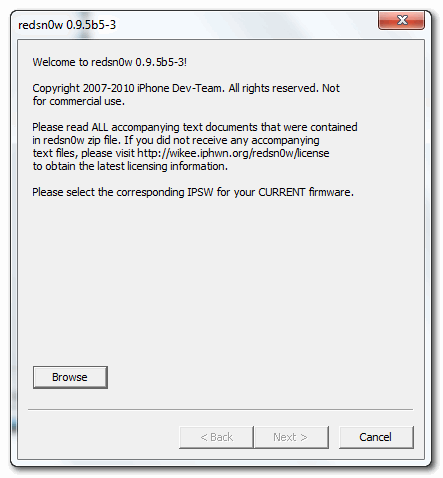
Once RedSn0w opens click the Browse button
Step Five
Select the firmware ipsw we placed in the Pwnage folder on our desktop then click Open.

Step Six
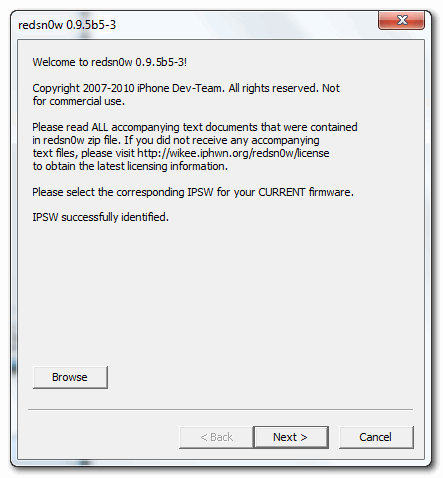
Once the firmware has been verified click the Next button to continue.
Step Seven
RedSn0w will now prepare the jailbreak data
Step Eight
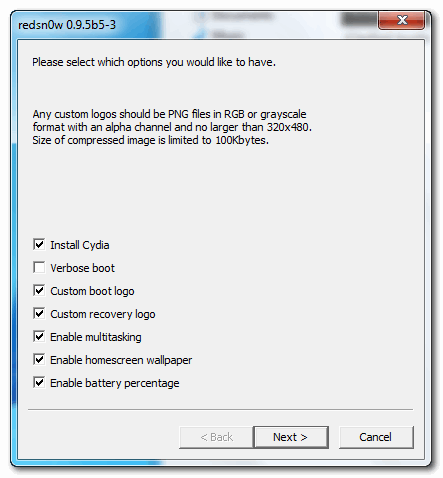
From this window you can select the jailbreak options you would like.
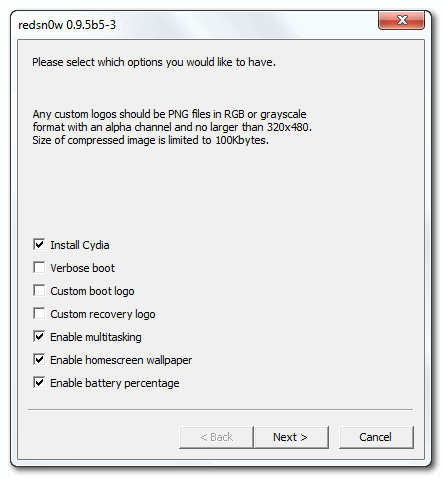
Verbose boot displays detailed information on boot of your device and is generally only needed by developers and advanced users.
Make sure Cydia is selected. For this tutorial we will also select Custom boot logo and Custom recovery logo.
When you click to select each custom logo option a dialog window will appear asking you to select the image. Locate the image you would like to use then press the Open button.
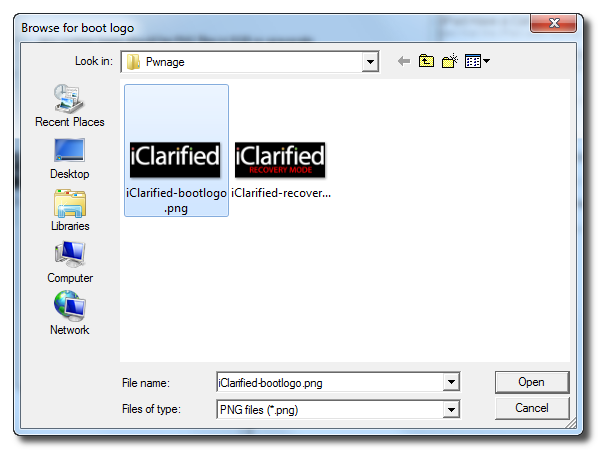

*Remember the rules for boot logos are: RGB or Grayscale format with Alpha channel and dimension below 320x480.
Notice that RedSn0w has already selected to Enable multitasking, Enable homescreen wallpaper, and Enable battery percentage. If you do not need multitasking we would recommend deselecting it as it makes your iPhone 3G run very slow.
Click the Next button to continue
Step Nine
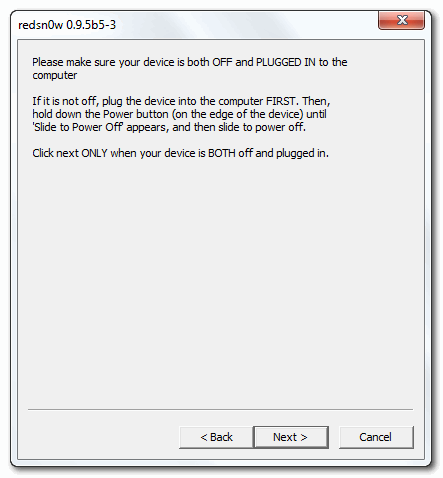
Please plug your iPhone into the computer and make sure its OFF then click the Next button
Step Ten
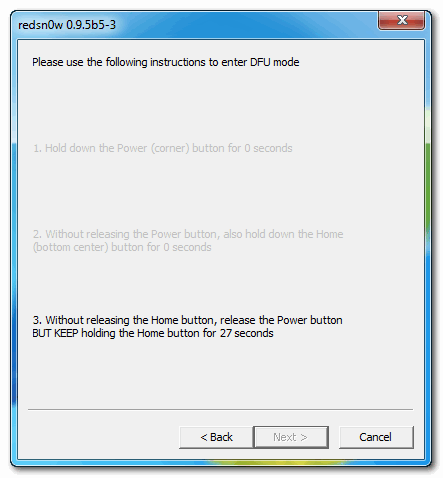
RedSn0w will now guide you through the steps to get into DFU mode. You can find more help with DFU mode here
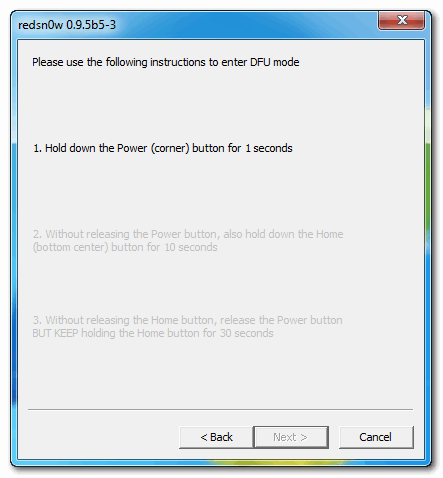
Hold down both the Home button and the Power button for 10 seconds.
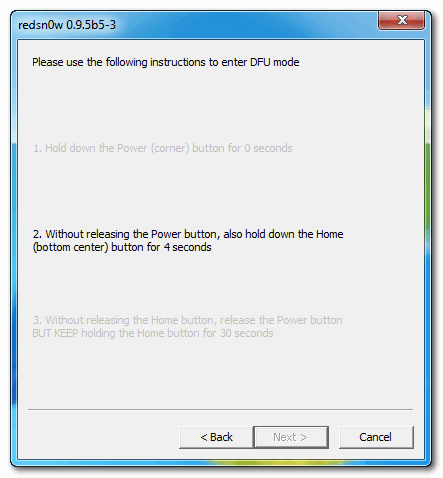
Release the Power button and continue holding the Home button until RedSn0w detects the device.
Step Eleven
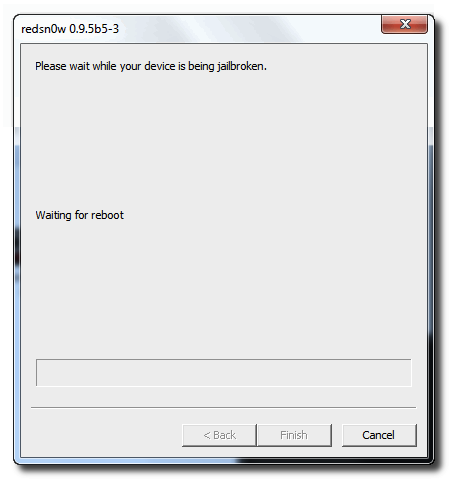
Your iPhone will now reboot
Step Twelve
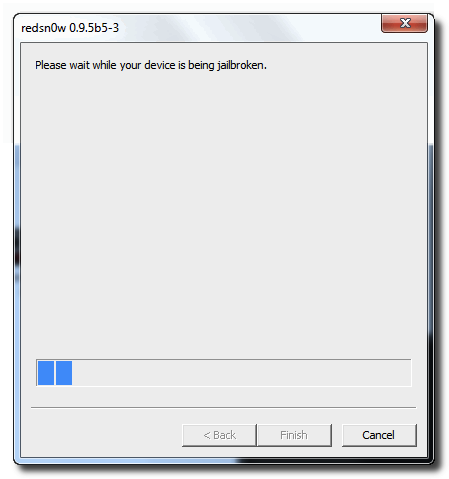
RedSn0w will then begin uploading the new RAM Disk and Kernel.
Step Thirteen
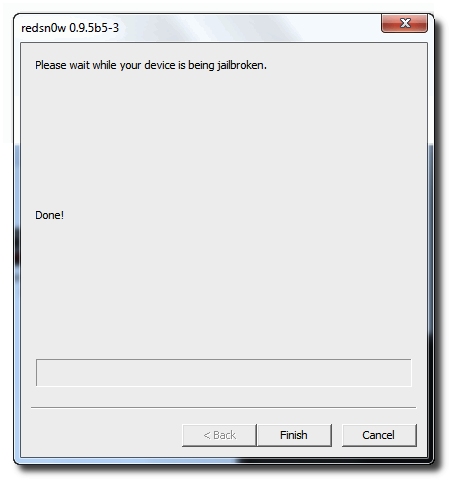
Once this is complete you will be notified that RedSn0w is done. Click the Finish button. When your iPhone finishes rebooting (5 minutes or so) it will be jailbroken with Cydia on the SpringBoard.
You can now unlock your device using UltraSn0w by following these instructions.
Subscribe to:
Posts (Atom)