[Crack] BatteryDetective 1.1.0-1
Saturday, February 19, 2011

Update : Version 1.1.0-1 released ! Crack is out !!
v1.1.0-1
- Fix for the new Verizon iPhone 4
Download 1.1.0-1 Cracked : Official
Requires iPhone 3GS, iPhone 4 ,or iPad
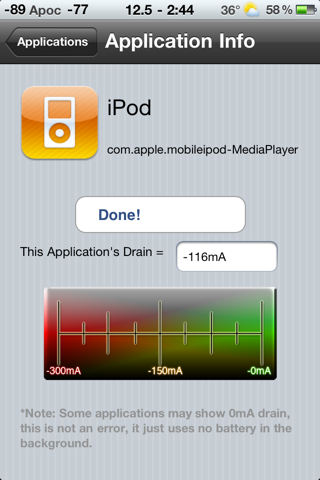
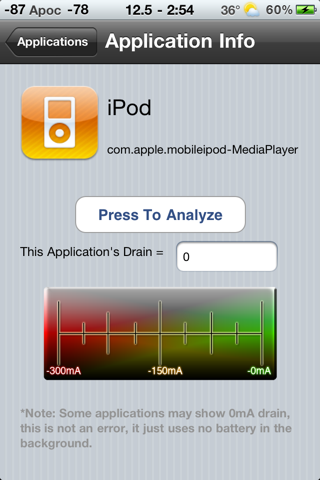
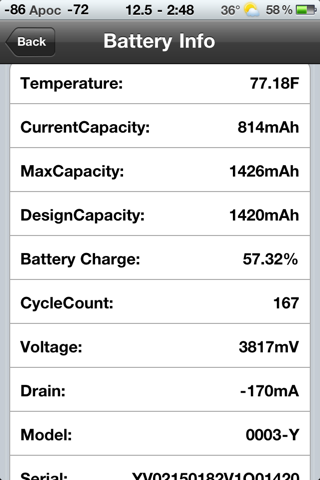
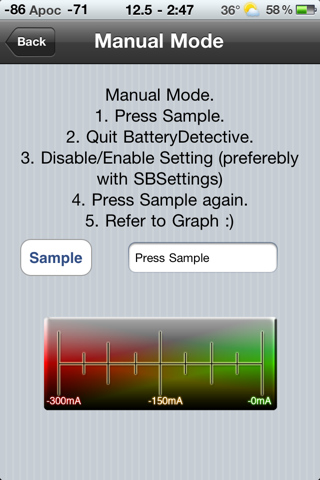
BatteryDetective is a very neat iPhone application. BatteryDetective has the ability to test the amount of battery drain that Background Applications are pulling. Not only that, BatteryDetective also allows you to test how much battery different iPhone settings use. Paired with SBSettings (not required) it makes a nice tool to see where your battery life is going! BatteryDetective also provides precise details about your battery realtime, more than you can find anywhere else! Only compatible with iPhone 3Gs, iPhone 4, and iPad
Notes :
--------------------------------------------
Previous Version
1.0.1-35 : Official
[How-To] Untethered Jailbreak for iOS 4.2.1 using GreenPoison RC6.1 *UPDATE*
Friday, February 18, 2011

Update 2 : Version RC6.1 released !
v6.1
- Chronic Dev Team has updated GreenPois0n to RC6.1 which incorporates fix by Comex for iBooks DRM error after jailbreaking iPhone, iPad or iPod touch on iOS 4.2.1 it with GreenPois0n RC5/6.
Update : Now Windows version is out !!
Chronic Dev Team has finally released the much awaited GreenPois0n RC5 which brings full untethered iOS 4.2.1 jailbreak for all iOS devices. Unlike Redsn0w 0.9.7, GreenPois0n RC5 doesn’t require you to have SHSH blobs of 4.2b3 saved on Cydia. You can jailbreak any iOS device out of the box on iOS 4.2.1 using this latest version of GreenPois0n.
If you want to jailbreak a Verizon iPhone on iOS 4.2.6, read this.
Greenpois0n RC6 is compatible with :
iPhone
- iPhone 3G
- iPhone 3GS
- iPhone 4
iPod Touch
- iPod Touch 2G
- iPod Touch 3G
- iPod Touch 4G
iPad
- iPad Wi-Fi
- iPad Wi-Fi + 3G
NOTE: If your iPhone 4 rely on an unlock, do not update to iOS 4.2.1 yet as doing so will upgrade your baseband, making it impossible for now to unlock.
Step 1: Download GreenPois0n from the link given below.
Step 2: Connect your iPhone via USB to your computer and click on “Jailbreak” as seen in the screenshot below.
Step 3: Now follow the following onscreen instructions to enter DFU mode:
- Press and hold the sleep button for 2 seconds
- Continue holding sleep; press and hold home for 10 seconds.
- Release sleep button; continue holding home for 15 seconds.
Step 4: GreenPois0n will now start “Jailbreaking” your iOS device untethered on 4.2.1.
Step 5: Your iPhone, iPad or iPod touch should now be successfully jailbroken on iOS 4.2.1. Now start “Loader” found on the homescreen and install Cydia.
This is it! You are done !
Download GreenPois0n RC6.1 for Windows
Download GreenPois0n RC6.1 for MacDownload iOS 4.2.1 for iPhone 4, 3GS, iPod touch 4G / 3G / 2G and iPad
[How-To] Jailbreak iOS 4.2.1 on iPhone 4, 3GS Untethered with PwnageTool and Unlock with Ultrasn0w
Wednesday, February 16, 2011

The iPhone Dev Team has just released official version of PwnageTool 4.2 which incorporates the new kernel based exploit of GreenPois0n for creating full untethered iOS 4.2.1 custom firmware files. Almost all iOS devices are supported except for iPod touch 2G.
When to use PwnageTool over GreenPois0n? If your iPhone relies on a carrier unlock, YOU MUST use this version of PwnageTool to create custom 4.2.1 firmware files without the upgraded baseband so that you can unlock your phone on the old baseband using Ultrasn0w 1.2.
Also as we already reported, fix for iBooks and WiFi problem on jailbroken Apple TV 2G will be released soon as a Cydia package.
Select iOS 4.2.1 IPSW file when required.
Step 1: Download untethered PwnageTool bundle for iPhone 4 and iPhone 3GS from here. Extract the .zip folder, in there you will find two .bundle files, info.plist and some other files.
Step 2: Download PwnageTool 4.2 for Mac and copy it to your desktop. Right click, and then click on “Show Package Contents” as shown in the screenshot below.
Step 3: Navigate to Contents/Resources/FirmwareBundles/ and paste iPhone3,1_4.2.1_8C148.bundle for iPhone 4, or iPhone2,1_4.2.1_8C148a.bundle for iPhone 3GS in this location.
Step 4: Now navigate to Contents/Resources/CustomPackages/CydiaInstaller.bundle/ and here copy the info.plist file and then simply close this folder.
Step 5: Download iOS 4.2.1 for iPhone 4 or 3GS. Move this IPSW file to your desktop.
Step 6: Start PwnageTool in “Expert mode” and select your device:
Step 7: Browse for iOS 4.2.1 firmware for your device.
Step 8: Now before proceeding with the create-the-bundle process, make sure “Activate the Phone” option is unchecked under “General”, and “Cydia Installer” package is selected under “Cydia Packages” option. Once done, select “Build” to start creating custom 4.2.1 firmware file:
Step 9: PwnageTool will now create the custom .ipsw file for your iPhone which will be jailbroken.
Step 10: Now follow the following steps to enter DFU mode:
- Hold Power and Home buttons for 10 seconds
- Now release the Power button but continue holding the Home button for 10 more seconds
- You device should now be in DFU mode
Step 11: Start iTunes, click on your iOS device icon from the sidebar in iTunes. Now press and hold left “alt” (option) button on Mac, or Left “Shift” button if you are on Windows on the keyboard and then click on “Restore” (Not “Update” or “Check for Update”) button in the iTunes and then release this button.
This will make iTunes prompt you to select the location for your custom firmware 4.2.1 file. Select the required custom .ipsw file and click on “Open”.
Step 12: Now sit back and enjoy as iTunes does the rest for you. This will involve a series of automated steps. Be patient at this stage and don’t do anything silly. Just wait while iTunes installs firmware 4.2.1 on your iPhone. Your iOS device screen at this point will be showing a progress bar indicating installation progress. After the installation is done, your iPhone will restart automatically and you should now have a fully jailbroken iPhone 4 or 3GS, untethered on iOS 4.2.1.
Step 13: Once you have jailbroken your iPhone 4 or 3GS, you can safely unlock it on iOS 4.2.1 (on 01.59.00 baseband for iPhone 4 and 05.13.04 baseband for iPhone 3GS) using Ultrasn0w 1.2.
[How-To] Enable FaceTime on iPad the Easy Way with iFacePad
Wednesday, February 16, 2011

It seems getting FaceTime to work on the current iPad is all the rage these days, but up until now it’s not been the easiest thing to do. But now thanks to iFacePad, the whole process is down to just a few downloads and a couple of mouse-clicks. You’ll be chatting in no-time!
So here’s the method for using iFacePad, though for now at least, it’s Mac-only.
- Download the app – iFacePad
- Get hold of iOS 4.2.1 for the iPod touch, 4th generation from here.
- Download PhoneDisk
- Jailbreak your iPad on 4.2.1 (untethered) – but you did that already, right?
- Fire up Cydia on your iPad and install OpenSSH and AFC2 (AFC2 is installed by default if you used GreenPois0n)
- Run PhoneDisk, enable Root and connect to it.
- Run iFacePad.app and reboot.
- Call someone!
/System/Library/PrivateFrameworks/IMcore.framework/IMAgent.app is set 755.
One word of caution – just remember they won’t be able to see you. That’s not always a bad thing though!
[How-To] Apple Cripples iBooks On Jailbroken iPhones, Fix is Out !!
Wednesday, February 16, 2011

Update : Fix is out !! [Credits to Comex]
Download this deb : Official
Install it like usually, it's just a deb file.
______________________________
It appears some people have been experiencing issues when trying to run Apple’s iBooks app on jailbroken devices, specifically the ones done via recently released GreenPois0n. Today though, iOS hacking king Comex tweeted that he has discovered the reason for the crash, and can now start to implement a fix.

@Comex: It seems that before opening a DRMed book, iBooks drops an improperly signed binary, tries to execute it, and if it works concludes that the device is jailbroken and refuses to open the book.Later, MuscleNerd of iPhone Dev Team also confirmed the fix:
This is what the binary does:
int main() {
return 42;
}

@comex did an amazingly fast job repairing the damage Apple did to iBooks on JB platforms (fairplayd is next cat&mouse?)
The issue stems from the way iBooks handles DRM protected books. According to Comex, the app actually checks to see if the device is jailbroken by trying to execute an improperly signed binary. If it works, the application knows the hardware has been jailbroken and the book isn’t opened.
Perhaps the question here is why is Apple checking for jailbroken hardware? Hopefully it’s just an anti-piracy measure but the cynic in me thinks there may be more to it than that. Even if it is a piracy issue, I’m sure jailbreakers won’t take too kindly to Apple assuming they are all pirating content!
Comex has said that the fix will be added to the next jailbreak tool for iOS, so hopefully the issue will be a thing of the past very soon.
[Crack] SpringClean 0.95-1
Wednesday, February 16, 2011

Update : Version 0.95-1 released ! Crack is out !! [Credits to Danii]
v0.95-1
- Added setting to show active app in switcher
- Added setting for user set alpha on dimmed icons
- Catch apps not loaded from springboard by user. This makes the system loaded setting redundant
- Improve compatibility with device / firmware versions
Download 0.95-1 Cracked : Official
Requires iOS 4.0+
Not tested on iPad
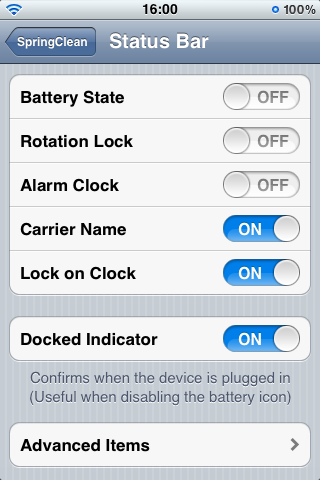
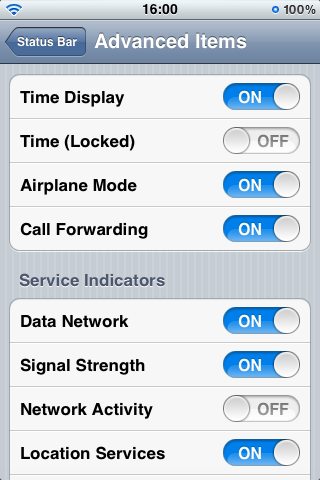
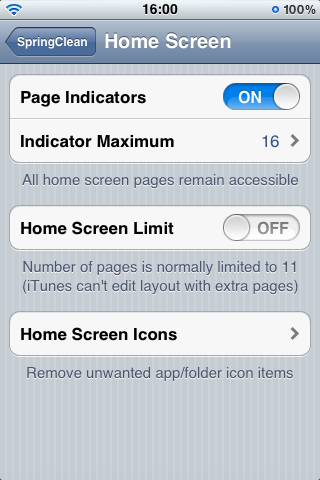
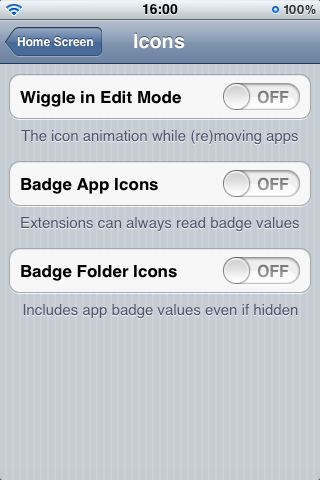
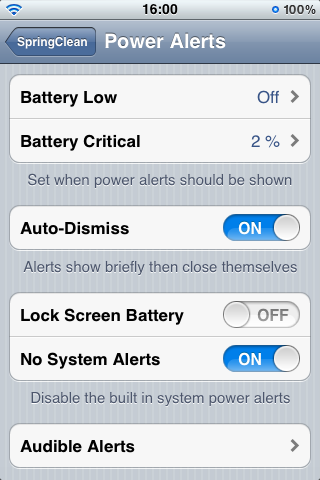
Tidy away various SpringBoard elements - if you want to remove some annoyances without the overhead of WinterBoard then this is for you.
Also includes simple replacement for the system's power alerts that usually occur at 20% and 10%.
View screenshots to see which elements can be removed and please feel free to suggest any items you would like to see removed.
Install and open settings application to configure, most removal type settings require a respring for changes to be applied.
No new icons are added to your homescreen. You can configure options from your Settings app.
Notes :
-----------------------------------------
Previous Version
0.93-1 : Official
[News] Apple Working On 3 New iPhone 5 Prototypes, 1 With Slide-Out Physical Keyboard
Tuesday, February 15, 2011

We tend to take rumors from Taiwanese blogs with a pinch of salt here at Redmond Pie, but this one caught our eye courtesy of AppleInsider. The report, from tw.apple.pro claims that Apple is currently working on not one, not two, but three iPhone 5 prototypes. What’s more, it’s rumored that one of these handsets possesses a slide-out hardware keyboard.
Unfortunately, the original report has been run through a very rough translation, but another point raised is the existence of one prototype closely resembling the current iPhone 4 model. This would be akin to the iPhone 3G/3GS update where the exterior remains identical but the innards receive a slight upgrade with improved battery life, faster CPU and more RAM.
The reason this particular rumor caught our eye is thus: tw.apple.pro are the people that got their hands on an iPhone 4′s screen long before its announcement, along with a battery from the aforementioned handset. Granted, a good track record doesn’t automatically make these claims true, but it’s a start.
Regardless, I’d eat my hat (well, if I owned one anyway) if any future iPhone was to find its way to market with a hardware keyboard!
[News] iPhone 5 to Feature 4-inch Display, A5 Processor
Tuesday, February 15, 2011

A new report from Digitimes claims that the next-generation iPhone 5 will feature a 4-inch display to take on Android-powered phones head-to-head as the battle for the supremacy in the next-gen smartphones heats up. They have received this piece of info directly from the component suppliers.
The component suppliers noted that the production lines for Apple’s next generation iPhone have begun testing, and Apple is interesting in expanding the screen size to 4-inches to support the tablet PC market as the vendor only has a 9.7-inch iPad in the market.Another report from the same source claims that iPhone 5 will sport a faster A5 processor (Dual-Core perhaps?) to take on the likes of recently announced Samsung Galaxy S II, while the iPad 2 will feature an enhanced version of the current A4 chip.
Apple is reportedly looking to outsource the production of its A4 processor as well as the next-generation ARM Cortex-A9-based A5 processor to Taiwan Semiconductor Manufacturing Company (TSMC), according to industry sources.
According to Digitimes Research, the iPad 2 will support an enhanced version of the A4 and the A5 will power the iPhone 5. TSMC will initially produce the improved A4, and could likely become the exclusive manufacturer of the A5.
Subscribe to:
Posts (Atom)