[How-To] Update iPhone 4 to iOS 4.2.1 While Preserving Old 01.59.00 Baseband for Unlock
Tuesday, January 04, 2011

If you have an iPhone 4 with the older and unlockable 01.59.00 baseband, and you want to upgrade to the latest iOS 4.2.1 while preserving your baseband, we have a solution for you. The following method will allow you to upgrade your iPhone 4 to iOS 4.2.1, while preserving the 01.59.00 baseband which is unlockable using Utrasn0w 1.2.
This method is known to work only with the iPhone 4, hence it may not work on other devices. The procedure seems fairly simple! We highly recommend you to backup everything on your device before following the procedure. Proceed at your own risk only.
Step 1: Download the original iOS 4.2.1 firmware for iPhone 4 from here.
Step 2: Now trick iTunes into thinking that it is watching Apple servers, while in real, we are going to change the address to Saurik’s server. To do this:
- Navigate to C:\Windows\System32\drivers\etc\ and locate “hosts” file.
Mac OS X users can get to “/etc/” directory by going through “Go –> Go to Folder” from Finder.
- Open this “hosts” file in Notepad (for Windows) or TextEdit (for Mac OS X) and add this
After the line : ::1 localhost74.208.105.171 gs.apple.com
Now simply save this file and you are good to go!
NOTES :
- for Windows 7 and Vista: Start “Notepad” with Administrator privileges by right clicking on “Notepad” app, and click on “Run as Administrator“ option.
- for Mac OS X: Make sure you have full read and write access on your account when you are saving the host file. If it still throws permission error, simply copy the host file to desktop, make the required changes, and then replace it with the original file in “/etc/” directory.
This will make iTunes prompt you to select the location for your iOS 4.2.1 firmware file. Select this ipsw file and click on “Open” to restore your iPhone.
Step 4: Now at some point while restoring to iOS 4.2.1, iTunes will throw 1013 error at you. This is normal, just ignore this error as the firmware has already been successfully installed on the device without the upgraded baseband.
Step 5: Your iPhone at this point will be stuck in Recovery Mode, showing that “Connect to iTunes” screen.
To exit your device from Recovery Mode, download this program called TinyUmbrella (Windows / Mac). Run it and the click on “Exit Recovery” button. Your device will now restart normally.
Once you have completed this procedure, Go to Settings –> About on your iPhone, and scroll down to check your Model Firmware (Baseband), which should now read 01.59.00 (which of course is unlockable using Ultrasn0w).
You should now be able to jailbreak your iPhone 4 on iOS 4.2.1 (tethered) using Redsn0w 0.9.6, or untethered using Redsn0w 0.9.7. Once you have jailbroken your iPhone 4, you can safely unlock it on iOS 4.2.1 (on 01.59.00 baseband) using Ultrasn0w 1.2.
Here is a little video of it in action:
[News] GreenPois0n for iOS 4.2.1 Jailbreak Release Seems Imminent
Tuesday, January 04, 2011

iPhone developer Joshua Hill of the Chronic Dev Team has publicly confirmed that he is going to release an updated version of GreenPois0n with support for iOS 4.2.1 jailbreak as soon as he is done adding sandbox patches.

Updated version of greenpois0n coming whenever I finish adding these new sandbox patches, sorry this has taken so long
For those of you who don’t know, GreenPois0n is based on Geohot’s Limera1n bootrom exploit which has already pwned all current iOS devices for life. This release of GreenPois0n though will most likely be a tethered jailbreak, much like what Redsn0w 0.9.6b6 can already achieve.

This so called tethered or semi-tethered jailbreak however only applies to the new devices like: iPhone 3GS (new bootrom), iPhone 4, iPad, iPod touch 2G (MC Model), iPod touch 3G and the iPod touch 4G. Old devices like iPhone 3GS (old bootrom), iPhone 3G and iPod touch 2G (Non-MC Model) can be jailbroken-untethered right now using tools such as Redsn0w 0.9.6b6. For untethered jailbreak, you will have to use Redsn0w 0.9.7 which requires you to have SHSH blobs of iOS 4.2b3 saved.
If you don’t have SHSH blobs of iOS 4.2b3 saved, you will have to wait for Comex’s untethered jailbreak tool which is most likely going to be released after Apple releases the next iOS firmware.
More updates as they come! Stay tuned !
[News] Comex’s Untethered Jailbreak Is Going To Be Released After Apple Releases iOS 4.3 Firmware?
Tuesday, January 04, 2011

Yes you read that right ! An Italian site contacted Comex of Spirit and JailbreakMe fame to ask him about whether or not he is going to release his untethered jailbreak tool for iOS 4.2.1. Comex’s reply was swift and simple, à la Steve Jobs. He is going to wait for Apple to release the next firmware update to public before releasing his tool.

Just like Steve Job’s ones, I would like to really receive a short and direct answer to my question: your next tool will jailbreak ready for iOS 4.2.1 or the next iOS 4.3?Comex replied:
Depends when 4.3 is out.
The email address of Comex as shown in the screenshot above seems authentic as he posted the same address publicly in a reply to a user on his Twitter account.
So as things stand now, the only way to get untethered jailbreak for iOS 4.2.1 is to use the latest version of Redsn0w 0.9.7, which requires you to have SHSH blobs of iOS 4.2b3 saved. There is currently no other way to get untethered jailbreak except for Redsn0w. If you don’t have SHSH blobs of iOS 4.2b3 saved, you can use Redsn0w 0.9.6 which can jailbreak (tethered only) all iOS devices on iOS 4.2.1.
Comex untethered jailbreak tool will be released only after Apple releases iOS 4.3 or 4.2.2, whichever they decide to before the major iOS 5.0 release in June this year.
[News] Geohot May Have Untethered Exploit For iOS 4.2.1 After All
Tuesday, January 04, 2011

Not so long ago, we reported about Rubyra1n which could be Geohot’s next jailbreak for iOS 4.2.1. And now, MuscleNerd’s tweet which was posted a few days ago seems to support this claim. MuscleNerd tweeted:

MuscleNerd: @ipodguy79 I hear geohot does have an untether actually! Though not for all devices.
This was posted as a reply to the following tweet:
ipodguy79: @sherif_hashim @MuscleNerd @iphone_dev @chpwn keep up with your soap opera and geo will be slapping another reality check on you
So if this statement from MuscleNerd is anything to go by, Geohot may be making a comeback to iPhone jailbreak scene. Though his untethered exploit is said to be limited to only a certain iOS devices.
Earlier today, Geohot released the PS3 root key to the public. As always, we will keep you updated. Stay tuned.
[Free] Backgrounder 1.0.2-1
Monday, January 03, 2011

Update : Version 1.0.2-1 released !
v1.0.2-1
- NEW: Retina images for badge and statusbar icons.
- These images were created and donated by Adam Bird (@Archez39).
- FIX: On iOS 4.2.1, Mail app would always quit, regardless of backgrounding state.
Download 1.0.2-1 : Official
Backgrounder is a tweak available on Cydia and necessary for all jailbroken iPhone or iPod Touch.
It will then permit you to manage multitasking (you can have several applications running at the same time).


- Start one application
- Long pressure on Home button, the application is now in background
- Long pressure again to disable the backgrounding.
- Since the version snv.r330-3, use Activator to background an application
Notes :
--------------------------------------------
Previous Version
1.0.1-1 : Official
1.0.0-1 : Official
svn.r558-1 : Official
svn.r556-1 : Official
svn.r553-1 : Official
svn.r521-1 : Official
svn.r515-b2-1 : Official
svn.r513-1 :Official
svn.r504-1 :Official
svn.r494-1 :Official
svn.r492-1 :Official
svn.r450-1 : Official
svn.r445-1 : 4shared
svn.r436-1 : 4shared
svn.r338 : 4shared
svn.r330-3 : 4shared
Plugged In 1.3 *Crack*
Monday, January 03, 2011

Update : Version 1.3 released ! Crack is out !!
- v 1.3
- Option to disable auto-lock while plugged in.
Download 1.3 Cracked : Official
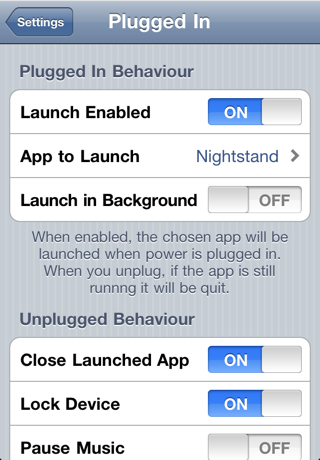
Adds a preference to Settings that lets you launch an app when power is plugged in. It also unlocks the phone if you have no pin code set. Great to make nightstand apps launch automatically such as "Night Stand HD - Alarm Clock" or use to run "Weather HD" when you dock your iPad.
No new icons are added to your homescreen. You can configure options from your Settings app.

Notes :
---------------------------------------
Previous Version
1.1 : Official
1.0 : Official
[How-To] Downgrade iPhone 06.15.00 Baseband to 05.13.xx (iPhone 3G Bootloader 5.8 Only)
Sunday, January 02, 2011

The following method will help you downgrade the baseband of iPhone 3G from 06.15.00 to 5.13.xx, which is unlockable using Ultrasn0w. This method will also enable you to restore your device on the official stock firmware using iTunes which was otherwise not possible on iPad’s 06.15.00 baseband.
This method currently only works with the iPhone 3G with bootloader 5.8. The procedure is fairly straightforward, however we would not recommend novice users to try this. We will also highly recommend you to backup everything on your device before following the procedure. Proceed at your own risk only.
Here’s what you will need:
- Jailbroken iPhone 3G
- Fuzzyband installed via Cydia
- afc2add installed via Cydia
- i-FunBox (for Windows) or DiskAid (for Mac)
- Certificate to use with Fuzzyband.
Step 1: Download the required certificate file ICE2-06.15.00.cert from here.
Step 2: Install Fuzzyband from Cydia and start this app.
Step 3: Connect your iPhone 3G with computer via USB cable.
Step 4: Start i-FunBox and click File, then navigate to Applications/Fuzzyband.app, right-click and then select Copy from PC.
Step 5: Select the ICE2-06.15.00.cert file you downloaded earlier and then copy it to this location: Applications/Fuzzyband.app.
Step 6: Now simply disconnect your iPhone from your computer and start Fuzzyband app (which you previously installed using Cydia) on your iPhone.
Step 7: In Fuzzyband, you will now see your current version of Baseband, (which should still be 06.15.00). But now you will have the option to downgrade it to version 05.13.xx.
Once you have downgraded, Go to Settings –> About, and scroll down to check your Baseband which should now read 05.13.xx (which is unlockable via Ultrasn0w). You can now also update or restore any firmware without iTunes throwing errors.


Subscribe to:
Posts (Atom)