Showing posts with label tutorials. Show all posts
Showing posts with label tutorials. Show all posts
[How-To] Jailbreak iOS 5.0.1 Untethered On iPhone, iPad, iPod touch (A4 Devices) Now Using Redsn0w 0.9.10b3 / Corona
Friday, December 30, 2011

Update : Beta 3 released !
The b3 version of redsn0w fixes a problem where re-running redsn0w over an existing jailbreak would cause MobileSubstrate-based apps to stop running until MS was installed again. Now you can re-run the redsn0w jailbreak step without worrying about that (but still remember to de-select the “Install Cydia” option if it’s already installed).
It has been nearly eight weeks since the first declaration by pod2g that he had found a bug that he believed could provide an untethered jailbreak for iOS 5. We find ourselves exactly fifty days down the line, and what I imagine has been a lot of sleepless nights for the developers involved, but we now officially have the release of an untethered jailbreak for all A4 devices running iOS 5.0.1.
On December 22nd, pod2g announced via his official blog that would be passing all of his work and details across to the researchers at the Chronic Development Team partly to allow him to concentrate on progressing the development of an A5 jailbreak, and partly because he believed that the Chronic Dev Team could integrate and package all of his work into a distributable jailbreak.
It seems that his instincts were correct as only five days after that decision was made, we are seeing a release of a jailbreak for A4 devices on iOS 5.0.1 which has been implemented by both the Chronic Dev and iPhone Dev teams.
The iOS 5.0.1 untethered jailbreak contains the exact same set of files that pod2g provided to the Chronic Dev Team, and can be distributed as either a download via Cydia by searching for a package named ‘Corona’, for users who are already jailbroken tethered, or through a Redsn0w bundle for users who have running stock iOS and have been waiting for this untether.
At the time of writing, it is worth noting that this jailbreak currently only supports iOS 5.0.1 with Chronic Dev Team member p0sixninja tweeting out that 5.0 will follow soon after a number of small bugs have been eradicated and more testing has been carried out. Pod2g has also released some advice to A4 and A5 users advising not to update their devices to iOS 5.0.2 or 5.1 when released as this would cut their chance of a future jailbreak.
Note: The jailbreak released is supported on all A4
based (and below) devices like iPhone 4, 3GS, iPod touch 3G/4G and iPad
1. Newer A5-based devices like iPad 2 and iPhone 4S are currently not supported.
For Users On iOS 5.0.1 Tethered Jailbreak:
If you are currently operating an A4 device which has a tethered jailbreak using Redsn0w, Ac1dSn0w or Sn0wbreeze then you can simply launch Cydia from your Springboard and download a package named ‘Corona’ which will provide you with an untethered jailbreak.
For Users On Stock iOS 5.0.1:
If your device is running stock iOS 5.0.1 then you can use download the latest Redsn0w 0.9.10b3 to for either Windows or Mac to give yourself an untethered jailbreak, instructions for which can be found below.
Step 1: Download the latest version of Redsn0w from the links given above.
Step 2: Start Redsn0w, select "Jailbreak" then check "Install Cydia". Follow the onscreen steps to place your device into DFU mode.
Step 3: Wait for Redsn0w to apply the full untethered jailbreak!
Once done, your iPhone, iPad or iPod touch will be rebooted into fully untethered jailbreak mode!
For Users Who Rely On Unlock:
For those of you who rely on Ultrasn0w or Gevey SIM unlock must preserve the old baseband using “Custom IPSW” option found in Redsn0w.
[How-To] Backup your ECID/ShSh blobs manually using TinyUmbrella [Windows]
Thursday, November 24, 2011

Update : TinyUmbrella updated ! Version 5.00.10 released !
5.01.00
- 5.0.1 support
5.00.08
- iPad 2 GSM/CDMA will restore the currently signed baseband so 10xx errors won't happen (This will cease to work once apple stops signing the current 4.3.x firmware's baseband)
- Optional iPhone 4 baseband update is now available to those that are officially unlocked. NOTE: iPhone baseband can ONLY be restore/updated to a baseband that apple is currently signing. END OF STORY
- Added 4.3.5, 4.3.4 support
- Fixed a nasty baseband request error for ipad 2 cdma.
5.00.04
- "John’s iPad" -> "John's iPad". nuff said.
- 5.0b3 support.
5.00.03 (comex's suggestions)
- Removed 'Apply Changes' completely
- Changes are applied as soon as you make them.
- TSS Server is now enabled as soon as the conditions are appropriate: ie when port 80 is no longer used or as soon as the hosts file is modifiable
- Changing from Apple to Cydia or Cydia to Apple does not require a restart to actually work (fail?)
- Some increased logging
5.00.00-02
- 5.0 beta support
- Removed Web/Socks proxy options (App now just uses System proxy settings)
- Resized vertically for the resolutionally challenged few individuals that are stuck with pathetically small screens.
- Added some nag screens for folks that can't figure out why they can't save SHSHs because they can't figure out how to uncheck a box and click a button.
- Fixed an overwrite of cdma iphone 4 5.0b1 blobs. (Resave them if you have an iPhone 4 CDMA
Download 5.01.00 : Official for Windows
These are instructions on how to backup your SHSH blobs using Firmware Umbrella for Windows. You can find the Mac version of this tutorial here.
Step One
Download the latest version of Firmware Umbrella from here to your Desktop.
Step Two
Right Click umbrella-4.01.03.exe and Choose Run as administrator from the contextual popup menu.
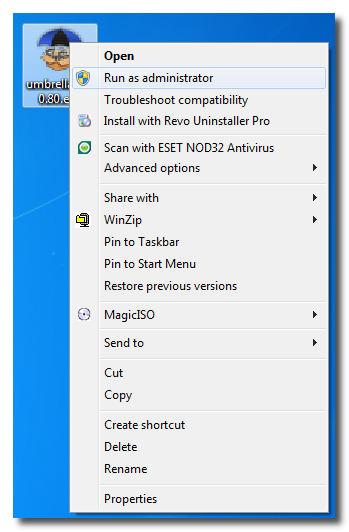
If you get a Windows Security Alert, make sure both boxes are checked, and hit Allow Access.

Step Three
You will be asked to Connect a Device.
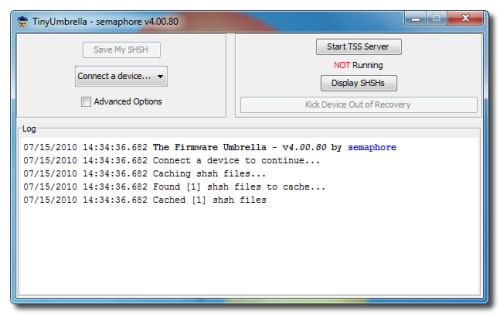
Once you do so Umbrella will detect the type of device and its firmware.
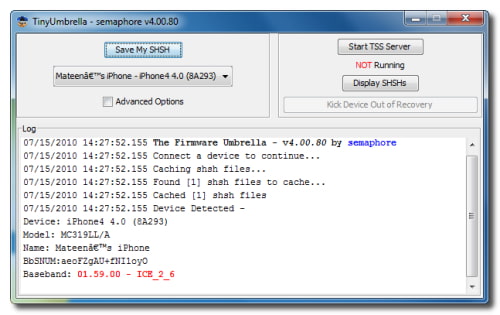
Step Four
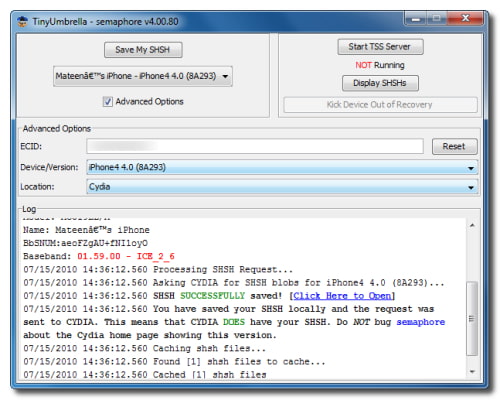
Check the Advanced Options box. Confirm the ECID of your device, make sure the correct firmware version is selected, and set the Location to Cydia.
Note: you can only obtain SHSH blobs for the latest firmware version released by Apple.
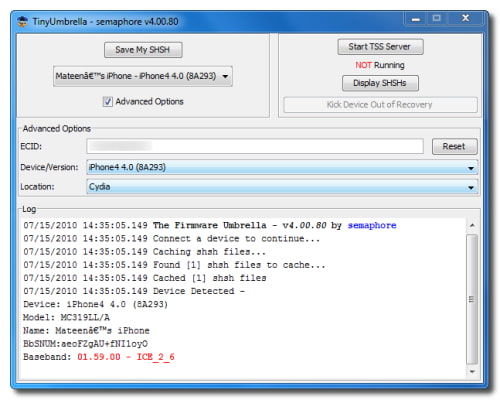
Step Five
Press the Save My SHSH button.
Once completed you will be notified that it was successful. "You have saved your SHSH locally and the request was sent to CYDIA. This means that CYDIA DOES have your SHSH. Do NOT bug semaphore about the Cydia home page showing this version."
IMPORTANT:
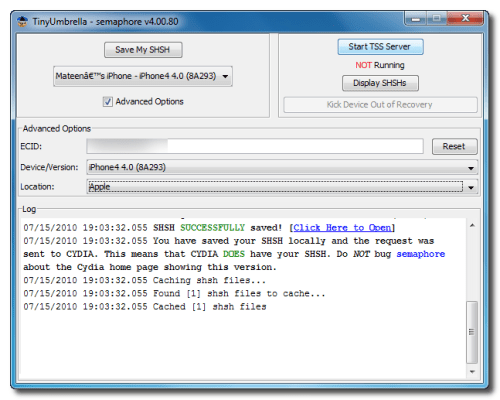
If you are unsuccessful in saving your SHSH blob because Cydia is overloaded then change the Location dropdown to Apple and store it locally.
These are instructions on how to backup your SHSH blobs using Firmware Umbrella for Windows. You can find the Mac version of this tutorial here.
Step One
Download the latest version of Firmware Umbrella from here to your Desktop.
Step Two
Right Click umbrella-4.01.03.exe and Choose Run as administrator from the contextual popup menu.
If you get a Windows Security Alert, make sure both boxes are checked, and hit Allow Access.
Step Three
You will be asked to Connect a Device.
Once you do so Umbrella will detect the type of device and its firmware.
Step Four
Check the Advanced Options box. Confirm the ECID of your device, make sure the correct firmware version is selected, and set the Location to Cydia.
Note: you can only obtain SHSH blobs for the latest firmware version released by Apple.
Step Five
Press the Save My SHSH button.
Once completed you will be notified that it was successful. "You have saved your SHSH locally and the request was sent to CYDIA. This means that CYDIA DOES have your SHSH. Do NOT bug semaphore about the Cydia home page showing this version."
IMPORTANT:
If you are unsuccessful in saving your SHSH blob because Cydia is overloaded then change the Location dropdown to Apple and store it locally.
[How-To] Backup your ECID/ShSh blobs manually using TinyUmbrella [Mac]
Thursday, November 24, 2011
Update : TinyUmbrella updated ! Version 5.01.00 released !
5.01.00
- 5.0.1 support
5.00.08
- iPad 2 GSM/CDMA will restore the currently signed baseband so 10xx errors won't happen (This will cease to work once apple stops signing the current 4.3.x firmware's baseband)
- Optional iPhone 4 baseband update is now available to those that are officially unlocked. NOTE: iPhone baseband can ONLY be restore/updated to a baseband that apple is currently signing. END OF STORY
- Added 4.3.5, 4.3.4 support
- Fixed a nasty baseband request error for ipad 2 cdma.
5.00.04
- "John’s iPad" -> "John's iPad". nuff said.
- 5.0b3 support.
5.00.03 (comex's suggestions)
- Removed 'Apply Changes' completely
- Changes are applied as soon as you make them.
- TSS Server is now enabled as soon as the conditions are appropriate: ie when port 80 is no longer used or as soon as the hosts file is modifiable
- Changing from Apple to Cydia or Cydia to Apple does not require a restart to actually work (fail?)
- Some increased logging
5.00.00-02
- 5.0 beta support
- Removed Web/Socks proxy options (App now just uses System proxy settings)
- Resized vertically for the resolutionally challenged few individuals that are stuck with pathetically small screens.
- Added some nag screens for folks that can't figure out why they can't save SHSHs because they can't figure out how to uncheck a box and click a button.
- Fixed an overwrite of cdma iphone 4 5.0b1 blobs. (Resave them if you have an iPhone 4 CDMA
Download 5.01.00 : Official for Mac
These are instructions on how to backup your SHSH blobs using Firmware Umbrella. You can find the Windows version of this tutorial here.
Step One
Download the latest version of Firmware Umbrella from here to your Desktop.
Step Two
Double click the downloaded Umbrella.dmg file to mount it. Drag the Umbrella app from the mounted dmg into your Applications folder. Then double click the Umbrella app to launch it.


Step Three
If asked enter your administrative username and password.

You will be asked to Connect a Device.

Once you do so Umbrella will detect the type of device and its firmware.

Step Four
Check the Advanced Options box. Confirm the ECID of your device, make sure the correct firmware version is selected, and set the Location to Cydia.
Note: you can only obtain SHSH blobs for the latest firmware version released by Apple.

Step Five
Press the Save My SHSH button.
Once completed you will be notified that it was successful. "You have saved your SHSH locally and the request was sent to CYDIA. This means that CYDIA DOES have your SHSH. Do NOT bug semaphore about the Cydia home page showing this version."

IMPORTANT:
If for some reason your SHSH blob could not be saved through Cydia [Server Overload etc] then you must save it locally.
Change the Location dropdown to Apple and click the Save My SHSH button again.

Restore with Saurik method.
[How-To] Unlock iOS 5 On iPhone 4 / 3GS Using Ultrasn0w 1.2.4 or Gevey SIM
Friday, October 14, 2011

Folks who rely on carrier unlocks using Ultrasn0w will be happy to know that its developers have just released an updated version of it which supports the final release of iOS 5.
The news comes straight from MuscleNerd – a famous hacker, jailbreak developer who is a part of the iPhone Dev-Team – in a tweet where he announces the updated version of Ultrasn0w.
For the uninitiated, Ultrasn0w is a program created by the iPhone Dev-Team which lets users unlock their iPhone so that they can use it on carriers other than the official ones. Once users have jailbroken their iPhone, they add a new repo to Cydia and then install Ultrasn0w to unlock their iPhone on iOS 5.
Gevey SIM on the other hand is a hardware-based unlock, which allows users to unlock their iPhone 4 on earlier basebands, including 04.10.01. But keep in mind that the newest basebands in iOS 5 are not supported by Gevey SIM at this point.
The updated version of Ultrasn0w released today brings support for iOS 5 final. Sadly, newer basebands aren’t supported, so you can only unlock via Ultrasn0w if you’ve got a compatible baseband: 01.59.00 for iPhone 4 and 04.26.08 / 05.11.07 / 05.12.01 / 05.13.04 / 06.15.00 for iPhone 3GS.
Before unlocking, you will need to jailbreak your iPhone on iOS 5. Jailbreaking enthusiasts will know that Redsn0w from iPhone Dev-Team has been successful in jailbreaking all betas of iOS 5 and even the GM release. These jailbreaks, however, did not preserved the older basebands. However, a new version of Redsn0w that was released yesterday preserves the old baseband on iPhones (like PwnageTool and Sn0wbreeze) which enables users to unlock using Ultrasn0w or Gevey SIM (tested, confirmed to be working on iOS 5 with older iOS 4.x baseband).
Unfortunately, this is still a tethered jailbreak which means you have to connect your iOS device with your PC every time you wish to reboot and boot back into the jailbroken state. According to prominent hacker i0nic, untethered jailbreak is already “covered” which, we believe, implies that we may see an untethered jailbreak for iOS 5 sooner than what was previously expected.
If you’ve got an iPhone 3GS or 4 with supported baseband (you can check from Settings > General > About > Modem Firmware) on any version of iOS 4.x, then you can update to iOS 5 final, jailbreak it using Redsn0w or Sn0wbreeze while preserving your baseband and then install Ultrasn0w or Gevey SIM to unlock your device.
Simply follow the steps jotted down below and you’ll be unlocked on iOS 5 final in no time:
Step 1: Jailbreak your iPhone using the latest version of Redsn0w or Sn0wbreeze on iOS 5. Keep in mind that both jailbreaking tools support the preservation of the old baseband.
Step 2: Once you’re done jailbreaking iOS 5 on your iPhone 3GS/4, fire up Cydia.
Step 3: Tap on the Manage tab then tap on Sources then tap on Edit and Add the following repository: http://repo666.ultrasn0w.com/
Step 4: Simply install the new Ultrasn0w 1.2.4 from the aforementioned repo, and voila! You’re unlocked! Note for iPhone 3GS users with 06.15 baseband:
Note: there’s a special “trick” that iPhone3GS owners with baseband 06.15 need for iOS5. During the new setup screens you see when you start iOS5 for the first time, you’ll be asked about Location Services. Be sure to select “Disable Location Services” when asked! Later on in the setup, you’ll have the chance to turn on Location Services again when asked if you want to use “Find my iPhone”. It’s fine to turn it back on at that point, if that’s your desire (or you can always go in and enable it in Settings.app).
For Gevey SIM users
Simply jailbreak using the methods given in Step 1 and follow the regular procedure for unlocking, which includes dialing the emergency ‘112’ number from your iPhone 4 and turning Airplane mode on or off till you get a cellular signal.
[How-To] Jailbreak iOS 5, 4.3.5, 4.3.3, And More On iPhone, iPad, iPod touch Using The All New Redsn0w 0.9.9b1 (No IPSW Selection Required, Except For iOS 5)
Monday, September 19, 2011
Redsn0w, the prominent jailbreaking tool developed by veteran of the scene MuscleNerd, has today been updated to version 0.9.9b1 and brings with it some key improvements, rendering it one of the most significant updates to date.
Whilst Redsn0w has done a terrific job of enabling the jailbreak of any iOS device bar the iPad 2, the process is somewhat elongated by the necessity of downloading the entire .iPSW file specific to the device in order to carry it out. The joy of using the likes of Comex’s JailbreakMe or the Chronic Dev Team’s Greenpois0n tool is that one doesn’t have to download those bulky (600mb+) files in order to quickly free the iPhone, iPad or iPod touch of that metaphorical ball and chain.
MuscleNerd has addressed this issue with the very latest update, released just minutes ago. Redsn0w detects and automatically downloads the essential files from Apple’s servers required to perform the jailbreak. Additionally, it stores those files in its cache, preventing the need to re-download for the purpose of carrying out the jailbreak again in the future. The system works for both tethered and untethered jailbreaks depending on the progress that has been made with said version of iOS.
Please note that the ‘scan and store’ of the essential files does NOT apply to the iOS 5 Beta releases. Those wishing to jailbreak one of the several incarnations of iOS 5 Beta will need to go about it the old school way and provide the full .iPSW in order for it to work. This limitation is placed because iOS 5 Betas are not available to public.
Here’s the full change log:
Redsn0w 0.9.9b1 will jailbreak any device except the iPad 2, which can be jailbroken on 4.3.3 using the jailbreakme.com method. Here’s how to use:
- uses DFU mode to try to automatically determine which device and FW you have
- fetches pieces of public IPSWs from Apple (once). Non-public IPSWs must be provided manually (once). It then caches those pieces for future use.
- “Just boot” is a tethered boot. Uses whatever “Preferences” you’ve set for boot logo and kernel boot-args
- “Pwned DFU” puts your device in a pwned DFU state for some of the iTunes stuff detailed below
- “Recovery fix” gets past 1015 types of errors (when baseband portion of restore fails). Should work on iOS5 beta too
- “Select IPSW” is for picking non-public IPSWs, or overriding auto-detection
- “SHSH blobs” has a bunch of options…
- “Fetch” – fetch current PARTIAL blobs on device. Should complete in under 10 or 15 seconds. Puts the set of PARTIAL of blobs on your computer as a plist. Checks if Cydia already has a full set for this device and build. If not, it submits this PARTIAL set and returns Cydia’s acknowledgement or rejection
- “Verify” – cryptographically verifies existing blob files from either redsn0w, TinyUmbrella, or Cydia server. You can select a whole bunch of blobs to verify at once if you want (like the TinyUmbrella directory)
- “Submit” – both verifies and submits one or more blob files to Cydia. This lets you copy your entire TinyUmbrella cache of blobs up to the Cydia server
- “Query” – queries the Cydia server for all available FULL or PARTIAL blobs for a given set of ECIDs
- “Stitch” – stitches either FULL or PARTIAL blobs to a STOCK or CUSTOM IPSW
- FULL blobs stitched to a STOCK IPSW gives you a completely self-contained signed IPSW that iTunes will accept without any tricks (no need to go into pwned DFU mode, no need to start TinyUmbrella TSS server, no need to redirect to Cydia server for blobs)
- PARTIAL blobs stitched to any IPSW requires you to go into pwned DFU mode before running iTunes. No need to start TU or use Cydia though.
- stitching either FULL or PARTIAL blobs to a CUSTOM IPSW also requires a pwned DFU start before iTunes restores. No need to start TU or use Cydia though.
- stitching is NOT yet supported on iPhones (well, at least not tested). Need to work out the baseband part of the restore process.
- will eventually support fetching the blobs directly from Cydia instead of a file on your computer
Step 1: Download the new Redsn0w 0.9.9b1 for Windows (direct link) or Mac (direct link).

Step 2: In order to just jailbreak your iOS device, simply click on “Jailbreak” button and follow the standard onscreen instructions to enter DFU mode in order to install Cydia on your device.

If you are not using any Beta firmware (like iOS 5), Redsn0w 0.9.9 will automatically fetch all the important bits from the required firmware files without bothering you to download those large IPSW files.
If you are using iOS 5 Beta firmware, you will need to provide the .IPSW firmware file manually.
Step 3: That’s it! You are done with the jailbreak. Optionally, you can use extra features found under “Extras” option. This includes options such as entering DFU mode, booting in tethered mode (required by all tethered jailbreaks: iOS 4.3.5, 4.3.4, iOS 5), fetching, verifying or using SHSH blobs, changing boot logos and more.

With the end-user release of iOS 5 just around the corner, it would be nice to see a swift update enabling the time and bandwidth saving technique to be applied to the latest firmware. Would be even nicer if we saw an early untethered though, wouldn’t it? Would almost be like Christmas coming early – new iPhone, new firmware and fully untethered jailbreak! Things don’t tend to run that smoothly in the cat and mouse world that pitches the Cupertino company up against the jailbreaking community; But hey, we can hope!
[How-To] AppSync for OS 5.x and lower : Sync cracked applications with iTunes *Update*
Wednesday, September 14, 2011

Update : Version 1.1-6 for iOS 4.0+ released !
Version 1.0.2 for iOS 5.0+ released !

Download : appsync5.0plus_1.0.2.deb (for iOS5.0+)
Download : appsync4.0plus_1.1-6.deb (for iOS4.0+)
Download : appsync42_1.0.1.deb (iOS 4.2)
Download : appsync41_1.0.1.deb (iOS 4.1)
Download : appsync40_1.0.2.deb (iOS 4.0,4.0.1)
Download : appsync31_1.0.1.deb (OS x3)
Download : appsync40_1.0.2.deb (iOS 4.0,4.0.1)
Download : appsync31_1.0.1.deb (OS x3)
Allows you to install cracked apps on your iDevice for OS 4.0 (repo Cydia : http://cydia.hackulo.us)

Repo : Hackulo.us.
Version : 1.0.2
Autor : Hackulo.us.
Compability : OS x3,iOS 4x
Dependancy : com.hackulo.us.sourcegui_1.2.
Price : free
Update : Version 3.2 released for iPad.
Allows you to install cracked apps on your iPad (repo Cydia : http://cydia.hackulo.us)
How to make cracked applications of AppStore work on your iPhone?
A cracked application is currently called an IPA
Almost of applications coming from the AppStore are and can be cracked ! It means that you can install an application freely BUT the aim is to test it and to buy it if you like it !

- Be sure that you have the updated source : http://cydia.hackulo.us
- Search "AppSync for OS xxx"
- Install it
- Reboot your iPhone
[How-To] Downgrade iOS 4.3.4 to 4.3.3, 4.3.2, 4.3.1, 4.3, on iPhone 4, 3GS, iPad 2, iPad, iPod touch
Monday, July 18, 2011

Apple has just released iOS 4.3.4 which patches the PDF vulnerability exposed by Comex’s JailbreakMe 3.0 tool which was used to jailbreak iPhone, iPad (and iPad 2) or iPod touch on iOS 4.3.3.
If you’ve saved your SHSH blobs for the earlier versions of iOS, in this case its 4.3.3, 4.3.2, 4.3.3, 4.3 or 4.2.1, then you can downgrade from iOS 4.3.4 to these earlier versions without any problem. Keep in mind that this guide does not apply to 3G iPad 2 users running iOS 4.3.4, since downgrading the baseband is not possible on it, yet. If you do have a 3G iPad 2 and have upgraded to iOS 4.3.4, then you are out of luck for now.
Step 1: Download the required IPSW file to which you want to downgrade to, the links are given below for your convenience:
Step 2: Once you’ve downloaded the required IPSW file, its time you put your iPhone, iPad or iPod touch into DFU mode. The steps are as follows:
- Connect your iPhone, iPad or iPod touch to your PC or Mac.
- Turn your device off.
- Now launch iTunes.
- Hold down the Power button and the Home button simultaneously for 10 seconds.
- After 10 seconds, release the Power button but don’t let go of the Home button, your computer should detect a new USB device.
- At this point, iTunes will also recognize your device, whether its an iPhone, iPad or iPod touch.
Step 3: Here comes the tricky and the most important part, you’re going to fool iTunes into thinking that its in contact with Apple’s servers, whereas we’re going to change that to Saurik’s server. In order to do this, follow the steps given below:
Windows users:
Navigate to C:\Windows\System32\drivers\etc\ and locate the file named as “hosts”.
Mac users:
Mac users can access the “hosts” file by navigating to “/etc/” folder, which can be found through Go > Go to Folder from within Finder.
If you’re on Windows, then open the “hosts” file in Notepad. If on a Mac, then open the “hosts” file in TextEdit, and add the following line at the end:
Just save the file and close Notepad or TextEdit, and you’re all set for the downgrade.74.208.105.171 gs.apple.com
A quick note for Windows 7 and Vista users: Start Notepad with “Administrator privileges”, that can be done by right-clicking the Notepad app, and there you will see the “Administrator privileges” option, simply click and launch.
A quick note for Mac OS X users: While saving the host file on your Mac, you should have complete read and write privileges in order to make changes. Getting a permission error? A simple workaround is to copy the host file to your Mac’s desktop, from there make the changes in TextEdit, save the file, and copy it back to the original location, and replace the original host file with the one which you just created.
Step 4: Launch iTunes, choose your device from the left sidebar. Hold down the left “Shift” key if you’re on Windows or hold down the left “alt” key if you’re on a Mac and click on “Restore”, do not click anything else! A new window will pop up asking you for the location of the IPSW file.
Navigate to the desired firmware to which you want to downgrade to, in this case it can be either iOS 4.3.3, 4.3.2, 4.3.1, 4.3 or 4.2.1. Once you find the required IPSW file, click “Open” and let iTunes do its thing.
In a matter of few minutes, iTunes will install the version of iOS which you directed it to install. At this point you should see a progress bar on your device, everything is automated, therefore don’t do anything silly. Your device will reboot automatically when everything is done.
In some cases, iTunes will throw 1013 error, ignore it, its perfectly normal when downgrading. At this point, your device will be in Recovery Mode with your desired version of iOS fully installed.
Its quite simple to get out of Recovery Mode, simply down this nifty program called TinyUmbrella (Windows, Mac) along with Fix Recovery (Windows, Mac).
Once you’re done downloading TinyUmbrella, launch it, and then click on the “Exit Recovery” button. In a matter of seconds, your device will boot up normally.
Once you’re done with this, the last thing you’re going to do is remove the line you added to the “host” file in step 3, which is 74.208.105.171 gs.apple.com in order to receive updates from Apple’s servers normally.
If you’re running iOS 4.3.3, then simply follow our guide on how to jailbreak iOS 4.3.3 using JailbreakMe, fully untethered!
Subscribe to:
Posts (Atom)